











Old family photos are more than just paper and ink. They are a bridge to the past and a way to remember people we love. Over time, these physical copies can suffer from many types of damage. Sunlight fades the colors, moisture causes spots, and moving them around leads to cracks or tears. You don't have to let these memories disappear forever. Modern technology makes it possible to fix these issues without needing expensive professional help.
You can use free AI photo restoration online to bring your old pictures back to life in just a few clicks. These tools use smart technology to look at the damage and figure out what should be there. If a photo has a scratch across a person's face, the system looks at the surrounding pixels to fill in the gap. It works much faster than a human editor could. You can save hours of manual work and get results that look natural and clean.
Restoring a photo involves more than just fixing a tear. Sometimes the image is blurry because the camera used decades ago wasn't very good. Other times, the lighting was poor, making the subject hard to see. Using an AI photo editor online helps you fix these lighting and clarity issues after the physical damage is gone. You can make the colors pop or sharpen the edges of a face so it looks like it was taken yesterday. These tools are designed for everyone to use, so you don't need to be a tech expert.
Technology has changed the way we handle history. In the past, you would need to hire a specialist who spent days painting over a digital scan. Now, the software does the heavy lifting for you. It recognizes patterns, textures, and shapes. This means it can tell the difference between a tree in the background and a person in the foreground. This level of detail ensures that the restoration looks authentic to the original time period.
Step By Step Guide to Restoring Your Photos
Step 1: Get a High Quality Digital Scan
The first thing you need to do is turn your physical photo into a digital file. You can use a flatbed scanner for the best results. Set the resolution to at least 300 DPI, but 600 DPI is even better if you want to print the photo later. If you don't have a scanner, you can use your smartphone camera. Make sure you have bright, even light and avoid any glare on the surface of the photo. Keep the phone steady to prevent any blurriness in the digital copy.
Step 2: Upload Your Image to the AI Tool
Once you have your digital file, you need to put it into the software. Most online tools have a simple upload button. You can drag and drop your file directly into the browser window. The system will then analyze the image to see what needs to be fixed. It looks for noise, scratches, and areas where the color has faded. This part of the process usually takes only a few seconds.
Step 3: Run the Restoration Process
After the image is uploaded, you can start the repair. Most tools have a specific button for restoration. When you click it, the AI begins to fill in cracks and remove dust spots. It uses a process called inpainting to guess what the missing parts of the photo should look like. This is especially helpful for photos that have been folded or kept in poor conditions. You'll see the cracks vanish as the software rebuilds the image structure.
Step 4: Colorize Black and White Images
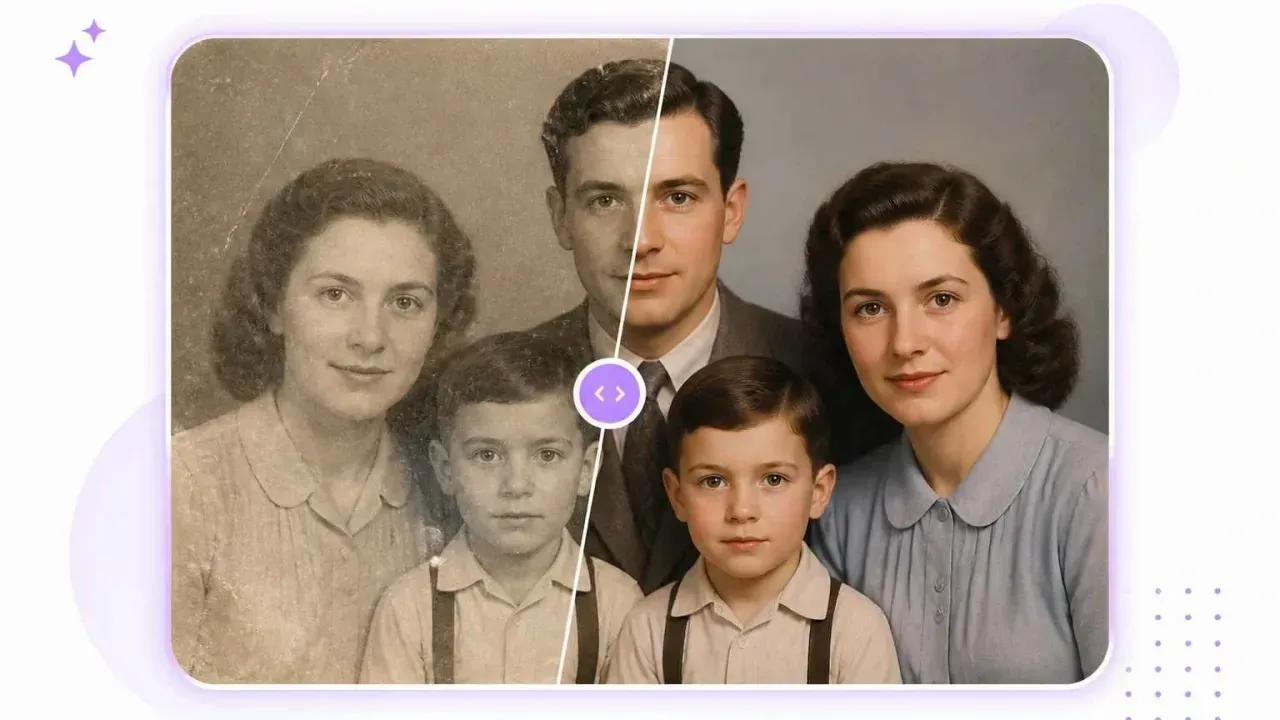
If your photo is black and white, you might want to add some color. AI tools are very good at this because they have been trained on millions of modern color photos. They can identify grass, sky, skin tones, and clothing. The software applies these colors in a way that looks realistic. It adds depth to the image and makes the people in the photo feel more real. You can usually toggle this feature on or off to see which version you prefer.
Step 5: Enhance and Sharpen the Details
Old photos are often a bit soft or blurry. The next step is to use enhancement features to sharpen the edges. This helps bring out the details in eyes, hair, and clothing textures. The AI adds pixels to the image to increase the resolution. This is called upscaling. It makes the photo look crisp even if the original was very small. You can also adjust the brightness and contrast at this stage to make the image look more balanced.
Step 6: Review and Download
Take a close look at the final result. Most tools let you see a before and after comparison. Check the faces to make sure the AI didn't change the features too much. If you are happy with the look, you can download the file to your computer. Save it in a high quality format like PNG or a high resolution JPG. It is a good idea to keep both the original scan and the restored version in your digital archives.
Comparison of Restoration Features
|
Feature |
What It Does |
Best For |
|
Scratch Removal |
Fills in lines and tears |
Physical damage |
|
Colorization |
Adds color to grey images |
Black and white photos |
|
Upscaling |
Increases the pixel count |
Small or blurry shots |
|
Face Enhancement |
Sharpens facial features |
Portraits |
|
Noise Reduction |
Removes grain and dots |
Low light photos |
Tips and Best Practices
Always work with a copy of your original scan. You don't want to lose the original file if you decide you want to try a different editing style later. Keeping the original allows you to start over if the AI makes a mistake that is hard to fix. It is also smart to save your work in different stages. This way, you can go back one step if you don't like a specific change.
Lighting is very important when you are scanning your photos. Natural light from a window is often the best choice if you are using a camera. Avoid using a flash because it creates a bright spot in the middle of the photo that the AI might struggle to fix. If you use a scanner, make sure the glass is clean. A tiny piece of dust on the scanner glass can look like a huge mark on your digital image.
Don't be afraid to use multiple tools. Sometimes one tool is great at fixing scratches but another is better at adding color. You can run your photo through one process, save it, and then upload it to a different tool for the next step. This layered approach often gives the most professional results. Take your time and experiment with different settings to see what looks best for your specific image.
Common Mistakes to Avoid
One big mistake people make is over-processing the photo. It is tempting to make the image look perfect, but sometimes this makes it look like a cartoon. If you remove all the grain and texture, the person's skin might look like plastic. It is better to leave a little bit of the original character of the photo. The goal is to make it look like a well-preserved version of itself, not a brand new digital creation.
Another mistake is ignoring the background. People often focus so much on the faces that they forget about the rest of the image. If the background is still blurry or has big scratches, the photo will look unfinished. Make sure the restoration is consistent across the whole picture. If you sharpen the subject, you should also make sure the background isn't distracting or messy.
Using a low resolution file is a common problem. If you start with a tiny, pixelated image, the AI doesn't have enough information to work with. The results will often look smudged or weird. Always start with the highest resolution scan possible. It is much easier for the software to work with a large file and shrink it down later than it is to try and create detail out of nothing.
Conclusion
Restoring old photos is a rewarding way to honor your family history. With the help of AI, you can fix damage that used to require professional skills. These tools allow you to remove scratches, add color, and sharpen details in a matter of minutes. By following a simple process and avoiding common mistakes, you can turn a faded piece of paper into a vibrant digital memory. Start with a good scan, use the right tools, and you will be able to share these precious moments with future generations. Your old photos don't have to stay hidden in a box when they can look as good as new.